
CARD
The Card Module is used for adding the Image, Text and Button.
Content Section:
-
Icon : Select the icon (Note: The Icon field will display if you have selected the Icon in layout Image/Icon?)
-
Image : Select the icon (Note: The Icon field will display if you have selected the Icon in layout Image/Icon?)
-
Title : Title of Card
-
Description : Description of Card in rich text field
-
Button Text : Button Text for Card
-
Button Link : Button Link for Card
Layout:
-
Image/Icon: Choose the options between Top of Left placement of image/icon
-
Heading Level: Choose from h1 to h6 for the title
-
Column Grid Selector: Choose from multiple options from One Column to Four Column to display element in a row
Style Section:
-
Box Style:
-
Text Alignment: Select the alignment of text
-
Background Color: Set the background color for all the elements
-
Border: Set the border styles, width and color
-
Spacing: Add the custom padding and margin
-
Corner Radius: Apply the corner radius of all the direction for the elements
-
Box Hover Style:
-
Background Color: Set the hover background color for all the elements
-
Border: Set the hover border styles, width and color
-
Box Shadow Required: Check to apply default box shadow style in hover element
-
Content Style:
-
Icon Width: Set your icon size in %
-
Image Width: Set your icon size in %
-
Title And Description Spacing: Set the custom spacing for Title And Description
-
Title And Description Color: Set the custom Color for Title And Description
-
icon Color: Set the custom Color for Icon
-
image Round: Set the custom corner radius for image
-
Content Hover Style:
-
icon Color: Set the custom color for icon
-
Title And Description Color: Set the custom Color for Title And Description
Examples
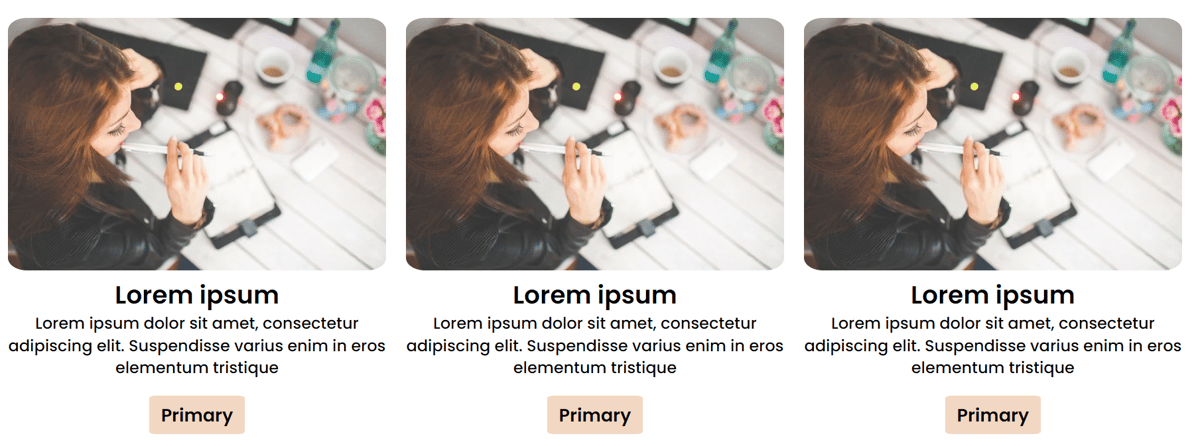
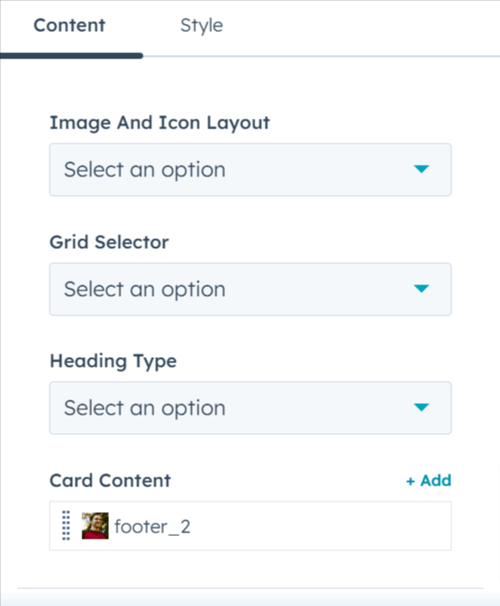
.png?width=500&name=Design-Previewer-HubSpot%20(1).png "Design-Previewer-HubSpot (1)")