Map
Introducing the Map module! This simple yet powerful feature allows you to easily embed a map on your website or application. With the Map module, you can add an iframe of a map from a map provider of your choice. Additionally, you have the option to set the height of the map. Let's explore its key features:
- Map Embedding: The Map module enables you to embed a map on your webpage or application using an iframe. You can obtain the iframe code from a map provider, such as Google Maps or OpenStreetMap, by specifying the desired location or address. This allows you to display an interactive and navigable map for your users.
- Map Provider Options: The Map module is compatible with various map providers, giving you the freedom to choose the one that best suits your needs. You can select a map provider that offers the features and map data that align with your requirements. Popular options include Google Maps, OpenStreetMap, Bing Maps, and many more.
- Interactive Map Experience: The embedded map within the Map module provides an interactive experience for your users. They can zoom in, zoom out, pan, and interact with the map functionalities provided by the selected map provider. This allows your users to explore locations, find directions, and engage with the map content.
- Responsive Design: The Map module is designed to be fully responsive, ensuring that the map adapts and looks great on different devices and screen sizes. Whether your users are accessing your website or application from a desktop computer, tablet, or mobile phone, the map will adjust its display to provide an optimal viewing experience.
The Map module provides a convenient solution for embedding maps on your website. Whether you need to display a specific location, provide directions, or offer an interactive map experience, this module allows you to easily integrate maps into your content. Enjoy enhancing your user experience with the power of interactive maps!
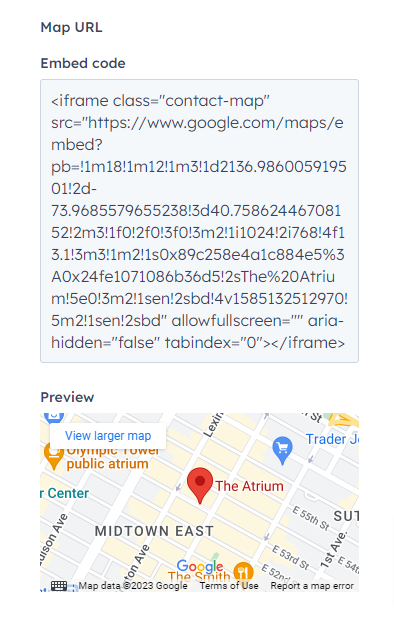
Table Of Contents
Welcome to the Table of Contents module! This feature-rich module allows you to create a user-friendly and interactive table of contents on your website or application. With the Table of Contents module, you can include a sidebar menu that provides quick navigation, while the other side displays corresponding content with headings. Let's explore its key features:
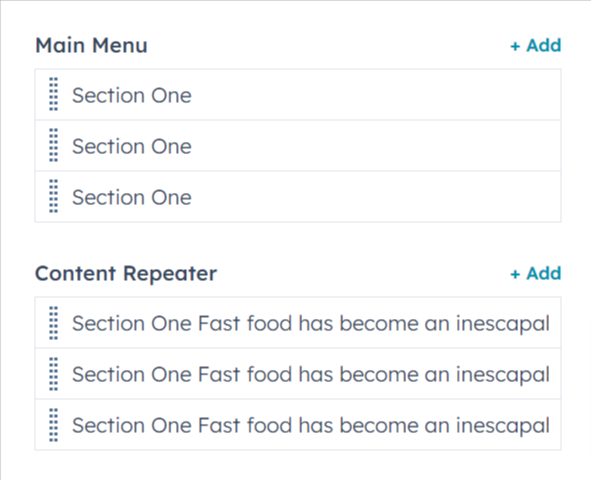
- Sidebar Menu: The Table of Contents module includes a sidebar menu that provides an overview of the content sections on your page. Each menu item corresponds to a specific section or heading within the content. Users can easily scan the menu and click on a particular item to navigate directly to that section.
- Content Display: On the other side of the Table of Contents module, the corresponding content is displayed. This content includes headings and the relevant information associated with each section. As users click on a menu item in the sidebar, the content section related to that menu item is dynamically displayed, allowing users to access the desired information easily.
- Quick Navigation: The Table of Contents module enables quick and convenient navigation within a long webpage or document. Users no longer need to scroll endlessly to find the information they are looking for. They can simply click on the menu item in the sidebar, and the page automatically scrolls to the corresponding content section, saving time and effort.
- Responsive Design: The Table of Contents module is designed to be fully responsive, ensuring that it adapts to different devices and screen sizes. Whether your users are accessing your website or application from a desktop computer, tablet, or mobile phone, the Table of Contents module will adjust its layout and display for an optimal viewing experience.
The Table of Contents module provides a user-friendly and efficient way for users to navigate through the content of your webpage or document. With its sidebar menu and corresponding content display, users can easily find and access the information they need. Enjoy enhancing your user experience with the Table of Contents module!
Section heading
Content Section:
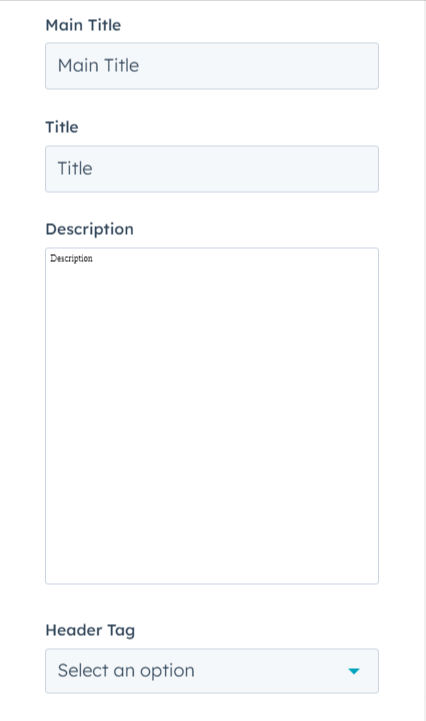
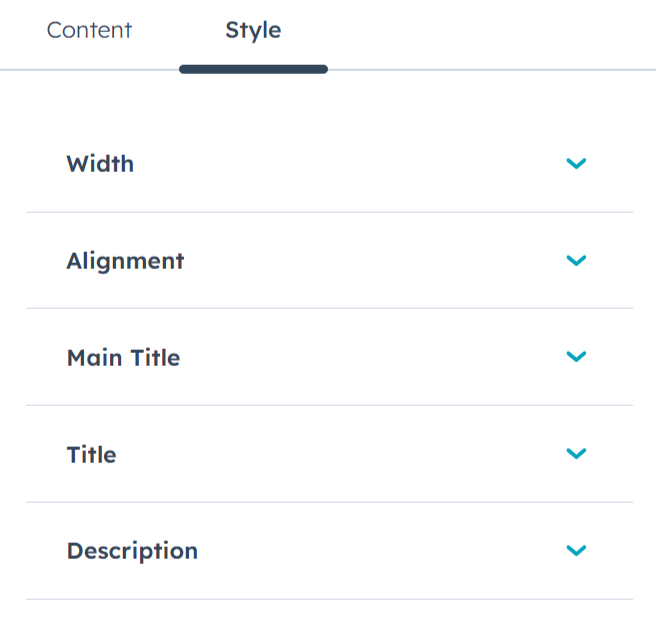
- Main Title : Add the main title of the section
- Title: Add the title of the section
- Description: Add the description of the section
Layout:
- Header Tag: Choose the all header tags.
Style:
- Alignment: Choose the content alignment options from left, center and right
- Width: Set the custom max width in px
- Main Title: -
Font: Set the font style, font size, color, weight, text-decoration of main title
Spacing: Set the custom padding and margin of the main title - Title: -
Font: Set the font style, font size, color, weight, text-decoration of title
Spacing: Set the custom padding and margin of the title - Description: -
Font: Set the font style, font size, color, weight, text-decoration of description
Spacing: Set the custom padding and margin of the description
Blurb
The Blurb Module is used for adding the Image, Text and Description.Content Section:-
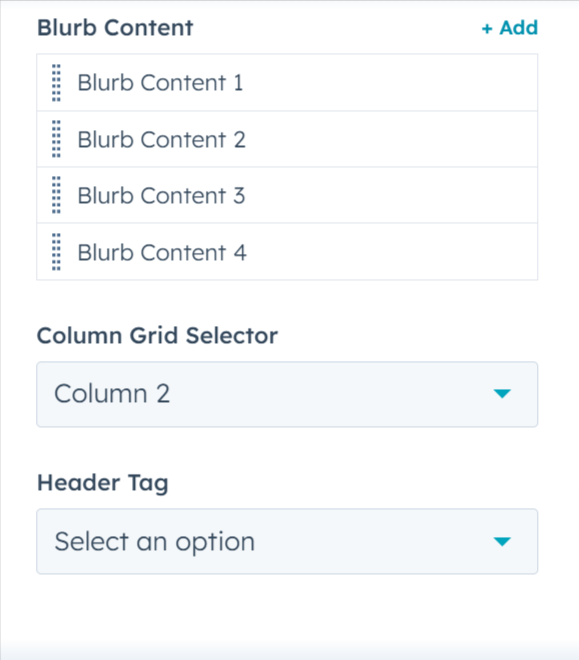
- Image: Image Of Blurb
- Title: Title Of Blurb
- Description: Description Of Blurb
Layout:- - Heading Level: Choose the all header tags.
- Column Grid Selector: Choose from multiple options from One Column to Four Column to display element in a row.
Style Section:-
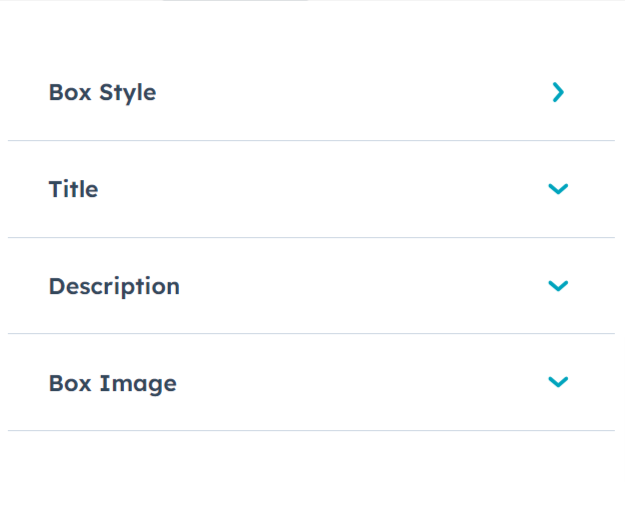
Box Style:
- Alignment: Select the alignment of text
- Background Color: Set the background color for all the elements
- Border: Set the border styles, width and color
- Spacing: Add the custom padding and margin
- Corner Radius: Apply the corner radius of all the direction for the elements
Content Style:-
- Image Round Width: Set the custom corner radius for image
- Title Spacing: Set the custom spacing for title
- Title Font: Set the font style, font size, color, weight, text-decoration of title
- Description Spacing: Set the custom spacing for title
- Description Font: Set the font style, font size, color, weight, text-decoration of title
Blog listings
The blog listing module is of Blog listing template type, and this module is only used for blog listing templateThis module is used for listing the posts in the blog page.
Content Section:-
- Featured Image: Enable the checkbox to use the featured image in post.
- Tags: Enable the checkbox to use the post tags in post. Note :- In hubspot the category is called as tags
- Title: Enable the checkbox to use the post title in post.
- Author: Enable the checkbox to use the author of the post.
- Publish Date: Enable the checkbox to use the publish date of post.
- Show Read Time: Enable the checkbox to show the reading time of the post, It means how much time spend to read the post.
- Description: Enable the checkbox to use the description of the post..
- Button: Enable the checkbox to use the button to redirect in the post detail page
- Button Text: Set the custom button text of the button.
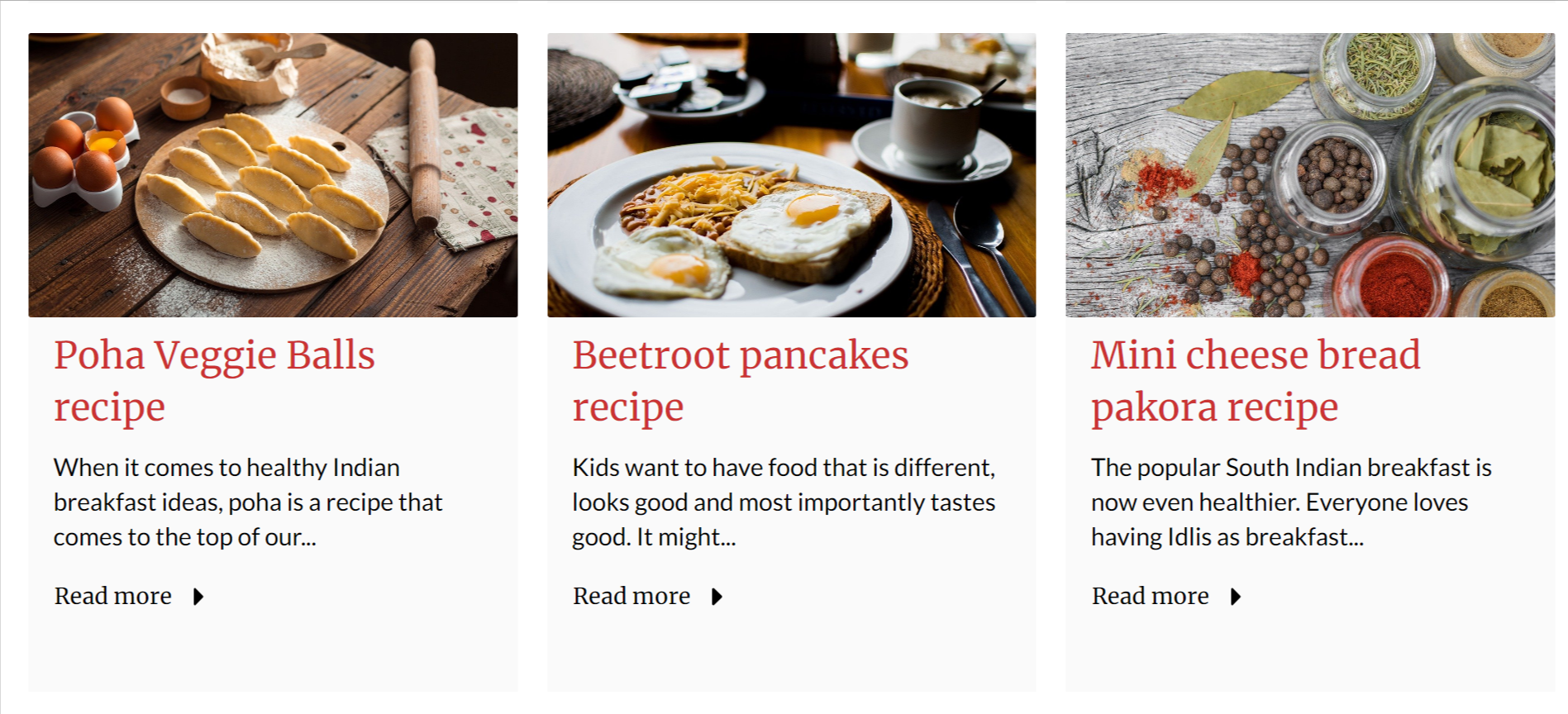
Layout:- - Layout Style: Select the options between List and Grid style, (Examples see below)
- Heading Level: Choose the all header tags.
- Button Selector: Choose various styles of button.
- Show Icon In Button: Enable to use the icon in button
- Column Grid Selector: Choose from multiple options from One Column to Four Column (Note:- This options will only display if the Grid is selected in Layout Style. )
- Scheme Light Color: Switch between light and dark color scheme
- Number of Words in Post Description: Set the number of words in post description of the post.
Style Section:-
Box :
- Spacing:: Apply the padding and margin for all the elements.
Background: - Background Color: Set the background color for all the elements
- Solid Color: Set the custom background color for the elements or box.
- Gradient Color: Set the custom background gradient color for the elements or box.
Border: - Border: Set the custom border for the element
Hover:
Background : - Background Color: Select the background options from solid color and gradient color for hover of elements
- Solid Color: Set the custom background color for the elements or box.
- Gradient Color: Set the custom background gradient color for the elements or box.
Border: - Color: Set the custom hover border color of the element, if you have set the border
Box Shadow: - Use Box Shadow: Enable for using the box shadow in element, after the enable all other options will display in this group
- Horizontal Offset: The horizontal offset of the shadow. A positive value puts the shadow on the right side of the box, a negative value puts the shadow on the left side of the box. Note:- If not require then set as 0
- Vertical Offset: The vertical offset of the shadow. A positive value puts the shadow below the box, a negative value puts the shadow above the box Note:- If not required then set to 0
- Blur: Optional, The blur radius. The higher the number, the more blurred the shadow will be
- Spread: Optional, The spread radius. A positive value increases the size of the shadow, a negative value decreases the size of the shadow.
- Color: Set the color of box shadow
Featured Image:-
- Radius: Set the custom corner radius for all the directions in featured image
Four Side: - Custom Corner Radius: Enable the checkbox to use the custom corner radius for all the sides of image, Note:- After the enable all other options will display of these group.
- Top Left Corner: The value applies to border Top-Left corner of the image
- Top Right Corner: The value applies to border Top-Right corner of the image
- Bottom Right Corner: The value applies to border Bottom-Right corner of the image
- Bottom Left Corner: The value applies to border Bottom-Left corner of the image image
- Height: Set the custom height of the featured image
Tags:
Text: - Font: Set the various font style, size, color, weight and decoration for the tag
Spacing: - Spacing: Set the custom padding and margin of tag
Background: - Use Background: Enable the checkbox to use the background in the tag field. After the enable of checkbox all other options will display in these group
- Background Selector: Choose the background option from solid color and gradient color
- Color : Set the custom solid color background for tag, the color will display if you selected the solid color in background
- Gradient: Set the custom gradient color, direction of color in background for tag, the gradient color will display if you selected the gradient color in background
Text:
- Font: Set the various font style, size, color, weight and decoration for the read time text
Spacing:
- Spacing: Set the custom padding and margin for read time tag
Title:
Text:
- Font: Set the various font style, size, color, weight and decoration for the time text
Spacing:
- Spacing: Set the custom padding and margin for read time tag
Author:
Image:
Corner:
- Radius: Set the custom corner radius for the author image
Text:
- Font: Set the various font style, size, color, weight and decoration for the time text
Publish Date:
Text:
- Font: Set the various font style, size, color, weight and decoration for the time text
Description:
Text:
- Font: Set the various font style, size, color, weight and decoration for the time text
CTA Section
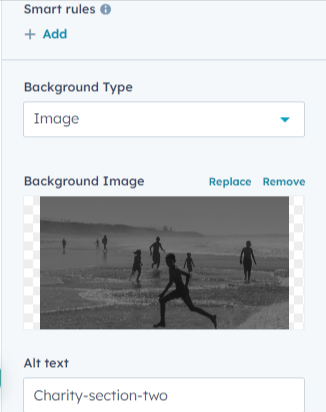
Welcome to the CTA Section module! This feature-rich module allows you to create visually striking Call-to-Action (CTA) sections on your website or application. With the CTA Section module, you can add a background image, customize the content, and include a compelling CTA button. Additionally, you have the option to adjust the spacing at the top and bottom of the section. Let's explore its key features- Background Image: The CTA Section module provides the option to add a background image. You can choose an image that aligns with your brand, enhances the visual appeal, or helps convey the desired message. This feature allows you to create a visually engaging CTA section that captures the attention of your visitors.
- Customizable Content: With the CTA Section module, you have the flexibility to customize the content of your section. You can add text, images, or any other visual elements that effectively communicate your message or offer. This customization option allows you to tailor the content to your specific needs and create a compelling CTA section.
- Call-to-Action Button: The CTA Section module includes a prominent Call-to-Action button that encourages users to take a specific action, such as making a purchase, signing up, or contacting you. You can customize the button text, style, and link to match your desired CTA. This button helps drive conversions and directs users towards your desired goal.
- Top and Bottom Spacing: The CTA Section module allows you to adjust the spacing at the top and bottom of the section. This feature enables you to control the visual balance and positioning of the CTA section within your webpage or application. You can increase or decrease the spacing to achieve the desired design and layout.
- Responsive Design: The CTA Section module is designed to be fully responsive, ensuring that it looks great and functions well on different devices and screen sizes. Whether your users are accessing your website or application from a desktop computer, tablet, or mobile phone, the CTA Section module will adapt and provide an optimal viewing experience. This responsiveness guarantees a consistent and appealing user experience